


Configure
Overview
This document describes how to configure a project to use the content library.
The diagram below illustrates the configuration is driven by a defaults.xml file. This file is used as input by a command generate-objects which in conjunction with template files, produces two output files: object.xml and job.xml.
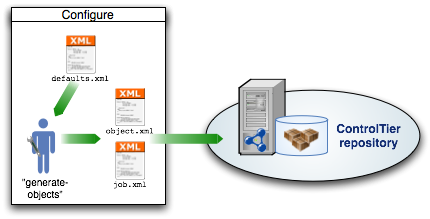
Step #1: Edit defaults.xml
The defaults.xml file contains all the essential environment-specific information needed by the library. It answers questions like: What host will the files be checked out, and to which directory? What host will the files be distributed to and to which directory?
Open a text editor or better yet an XML editor. Cut and paste the contents of the XML shown below and save it to disk.
<defaults>
  <default>
    <node>${framework.node}</node>
    <name>${opts.name}</name><!--this is passed in as the -name arg-->
  </default>
  <updater>
    <node>${defaults.default.node}</node>
    <builder>
      <!--hostname where build and packaging to run-->
     <node>buildhost</node>
      <!--directory where files will be checked out on buildhost-->
     <basedir>/path/to/workspace</basedir>
      <!--directory where package archive will be written on buildhost-->
     <targetdir>/path/to/targetdir</targetdir>
      <package>
	<!--directory where package archive will be extracted on deployhost-->
	<installroot>/path/to/installation/dir</installroot>
      </package>
      <scm>
	<!--scm checkout string. eg, if svn may be a url-->
	<connection>uri</connection>
	<!-- module name relative to connection string-->
	<module>modulename</module>
      </scm>
    </builder>
    <site>
      <node>${defaults.updater.node}</node>
      <deployment>
	<!--hostname where packages will be extracted-->
	<node>deployhost</node>
	<name>${opts.name}Target</name>
	<basedir>/path/to/installation/dir</basedir>
	<!--directory where package content will be extracted-->
	<installroot>${defaults.updater.builder.package.installroot}</installroot>
      </deployment>
    </site>
  </updater>
</defaults>
Some of the defaults can be taken as-is but the tags that are bold are ones that you must change, supplying the required local information.
Step #2: Configure library objects
Register and install a ContentProjectBuilder:
ad -p project -m Deployment -c Register -- \
      -name name -type  ContentProjectBuilder \
      -basedir $CTIER_ROOT/src/project -installroot $CTIER_ROOT/target/project \
      -install
Copy the defaults.xml you created in Step #1 to $CTIER_ROOT/src/project/defaults.xml
Run the generate-objects command:
ad -p project -t ContentProjectBuilder -o name -c generate-objects -- \
      -name aName \
      -defaults $CTIER_ROOT/src/project/defaults.xml -upload
Before you can run the job, it is necessary to deploy the objects. This is done via the AntDepo command, depot-setup. On the adminstrative node, run:
depot-setup -p project -a install
After this command successfully completes, a new set of objects will be loaded into the ControlTier repository. You can view them via ContentProjectBuilder's find-objects command:
ad -p project -t ContentProjectBuilder -o name -c find-objects -- \
      -name aName
Step #3: Upload job definition
The generate-objects command run in Step #2 will have produced a job.xml file with a filename aName-job.xml. This file can be used to define a new job in the JobCenter application.
- Login to JobCenter (e.g, go to URL: http://localhost:9090/jobcenter/menu/index
- Press the "Create a new Job..." button
- Press the "Upload job.xml" button
- Locate and select the file, aName-job.xml, produced by generate-objects in the file chooser
- Press "Save" button
The new job will be listed on the home page of JobCenter.
Optional Step: Check-in generated files
It is considered best practice to maintain the files generated by generate-objects in a source code repository.